Download Raspberry Pi Imager
Raspberry Pi Imager is the free tool that puts Raspberry Pi OS on your SSD. It works on Windows, macOS and Linux.
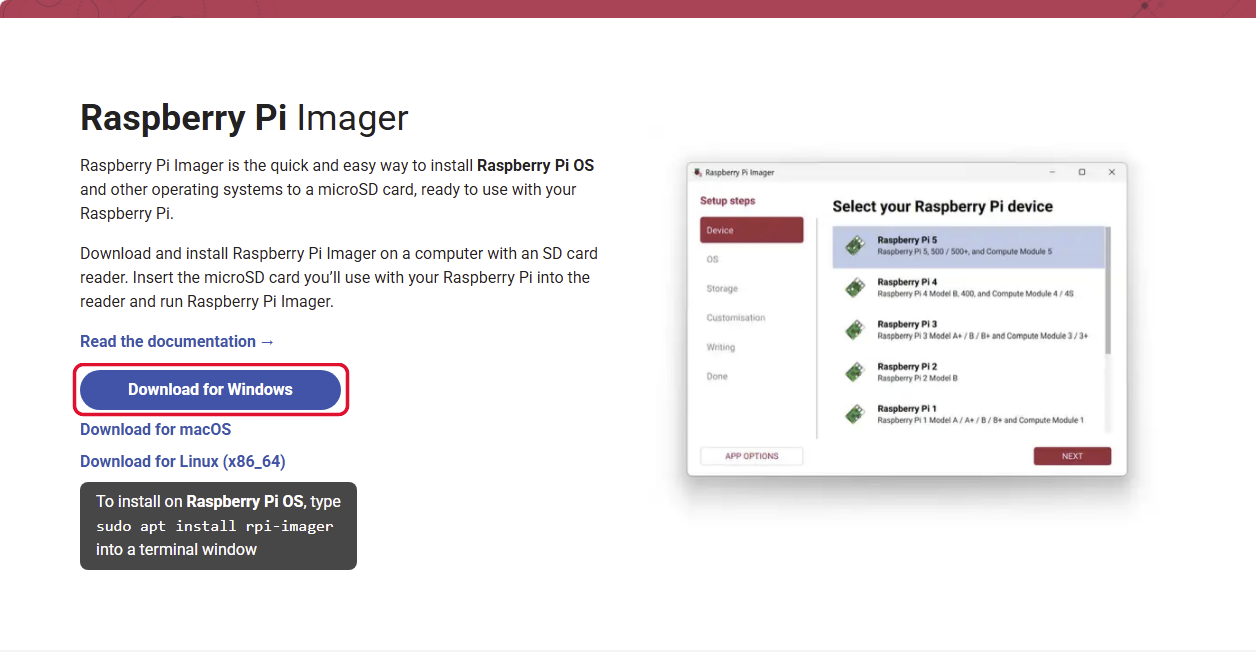
2aGo to the Raspberry Pi software page and click Download for Windows.
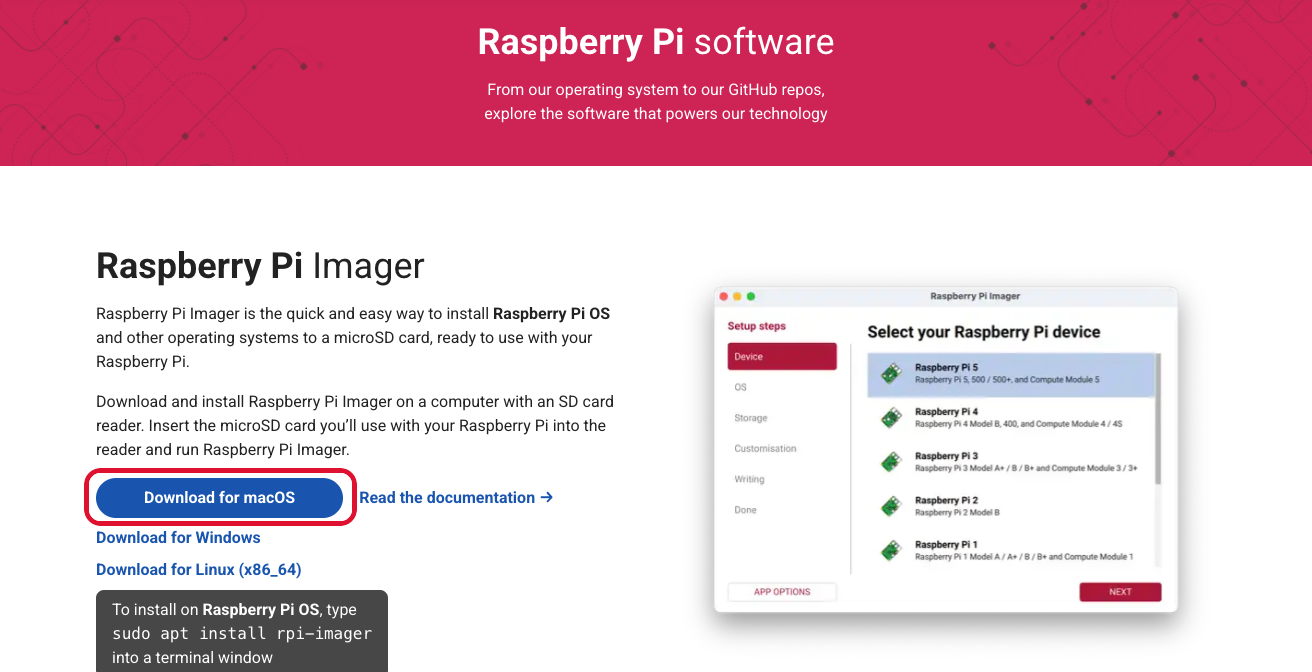
2aGo to the Raspberry Pi software page and click Download for macOS.
Install Raspberry Pi Imager
Run the installer you just downloaded.
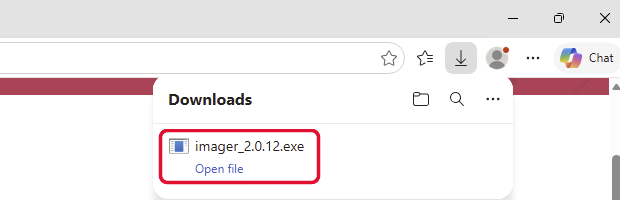
2bOpen your browser's Downloads and click Open file under the Imager installer (imager_2.0.12.exe - your version may be newer).
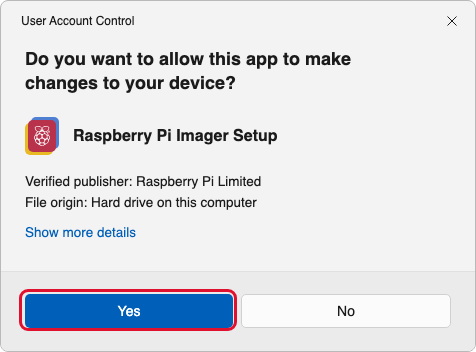
2cIf Windows asks Do you want to allow this app to make changes to your device?, click Yes.
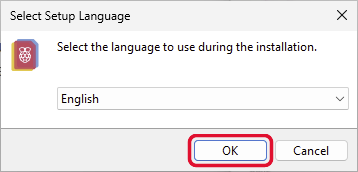
2dChoose your language and click OK.
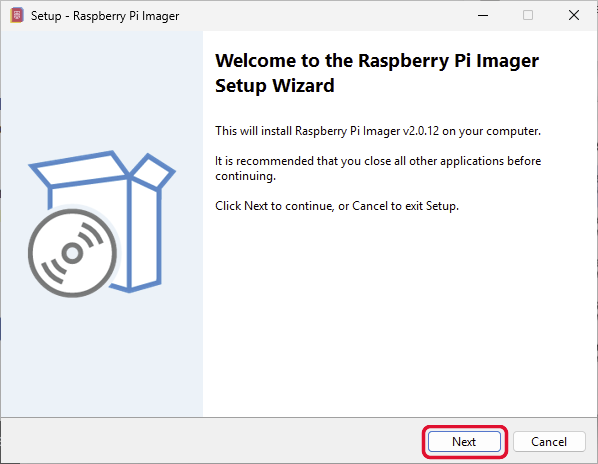
2eClick Next.
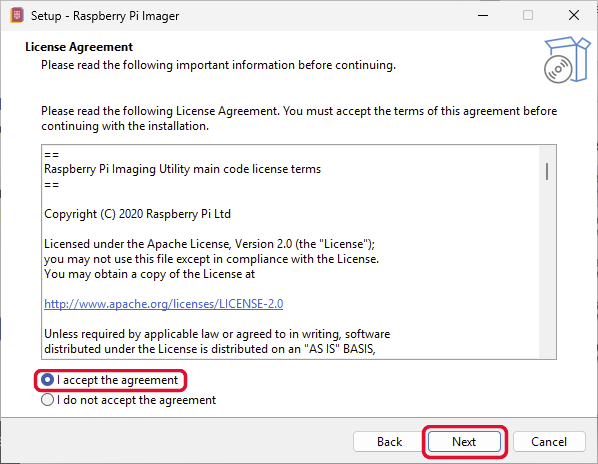
2fChoose I accept the agreement and click Next.
2gLeave the install folder as it is and click Next.
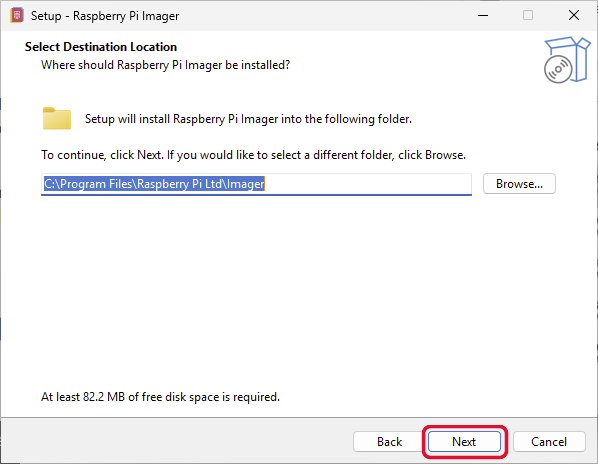
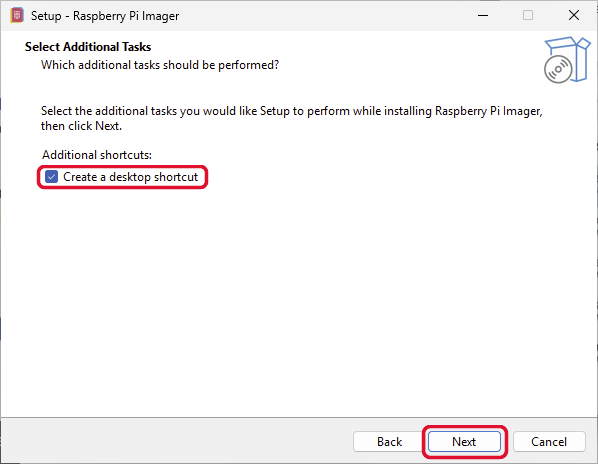
2hTick Create a desktop shortcut (handy, but optional) and click Next. Imager installs.
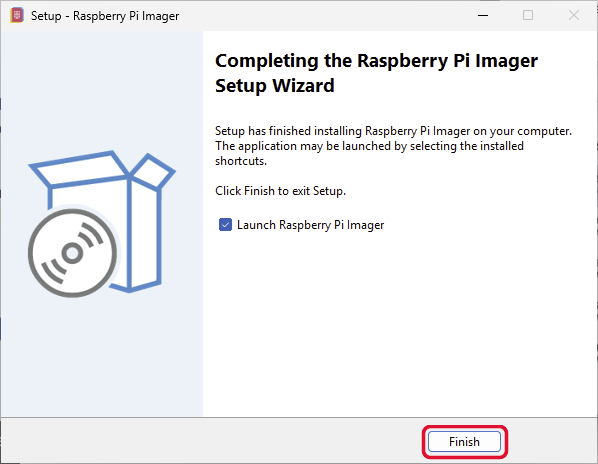
2iMake sure Launch Raspberry Pi Imager is ticked, and click Finish.
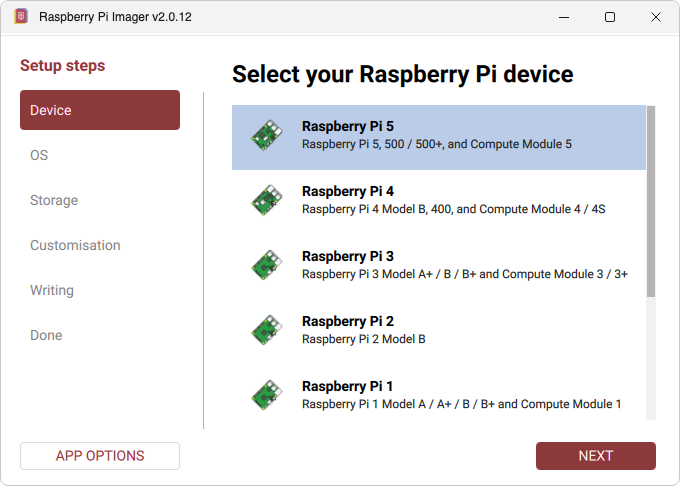
2jRaspberry Pi Imager opens:
Open the file you just downloaded and copy Imager to your Applications folder.
2bClick the Downloads icon in Safari, then the Imager file (imager_x.x.x.dmg - your version will be newer).

2cIf Safari asks Do you want to allow downloads on raspberrypi.com?, click Allow.

2dDrag the Raspberry Pi Imager icon onto the Applications folder.

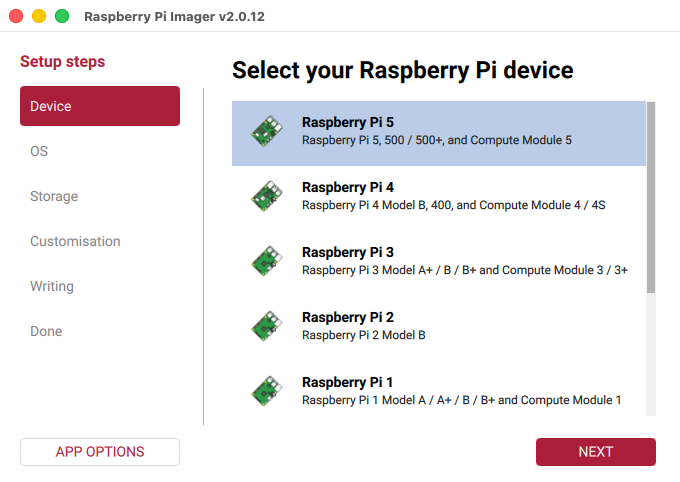
2eOpen your Applications folder and double-click Raspberry Pi Imager. It opens:
Next: Step 3 - Write Raspberry Pi OS to the SSD
Or go back to the One Page Setup.
Please Support DigiNode Tools
This guide and DigiNode Tools are free, and I build and maintain them in my spare time. If they have helped you, please consider supporting my work: