The last step: make your DigiNode easy to find
This is often the trickiest step, because every router is different - but it's also the most important. Forwarding a port on your router lets other DigiByte nodes on the internet find yours. Without it, your node can't fully support the network.
Stuck? Share your router's make and model in the DigiNode Tools Telegram group and someone will try to help.
Log in to your router
Almost every router has a settings page you open in your web browser.
7aFind your router's settings address, username and password. They're usually on a sticker on the router, like this:
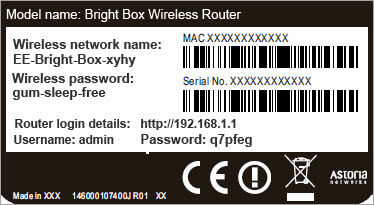
7bType the address into your browser and log in. (The admin password is not your Wi-Fi password.)
Can't find the login details?
Search the web for your router's make and model plus "default login". routerpasswords.com lists the default logins for many routers.
Give your Pi a fixed IP address
Your router gives each device an IP address (like 192.168.1.20) that can change. A fixed (static) one means you - and the port forwarding rule - can always find your DigiNode.
7cIn your router's settings, find your DigiNode in the list of connected devices (it's called diginode) and set it to always use the same IP address. Routers call this Static IP, DHCP reservation or always use this address.
Not sure where it is? Search the web for your router's make and model plus "assign static IP".
Show me some examples
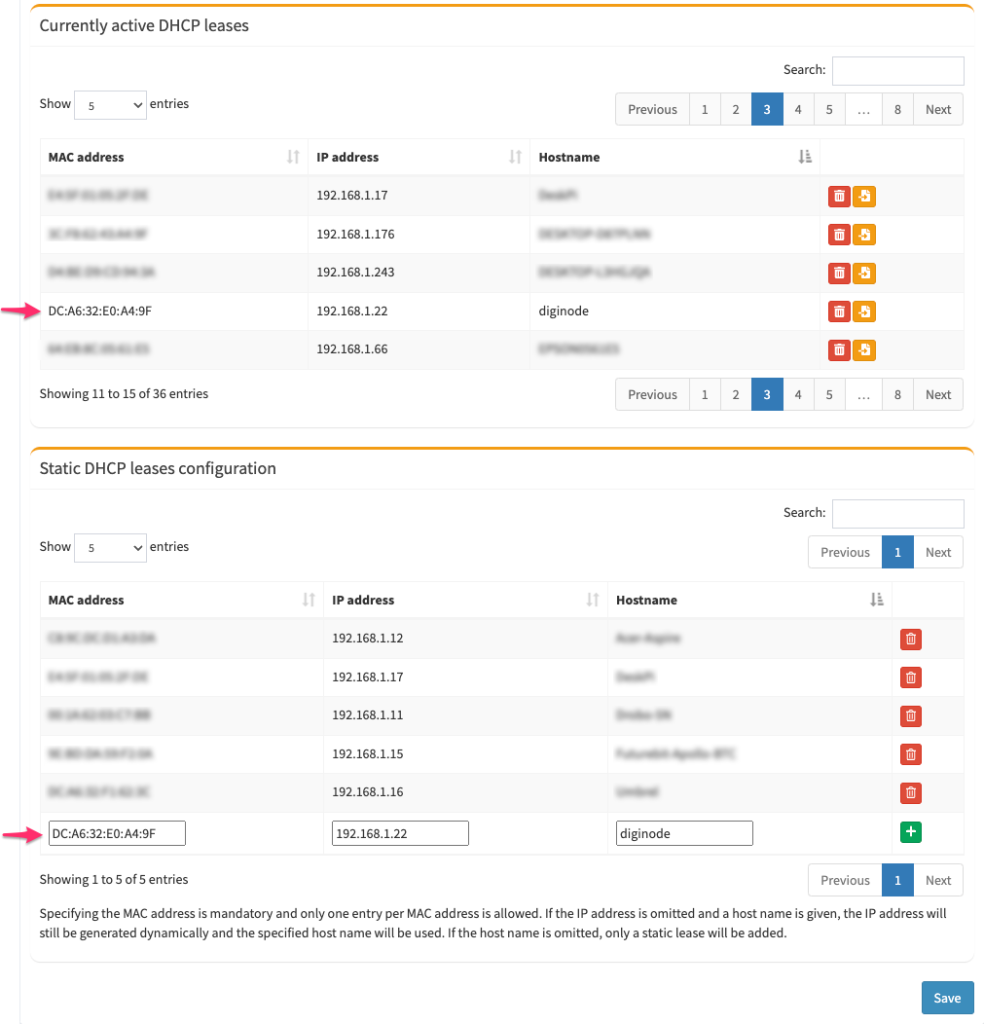
On this router, you copy the DigiNode's MAC address from the list of active devices into the Static DHCP lease list, with the IP address you want, then click + and Save:
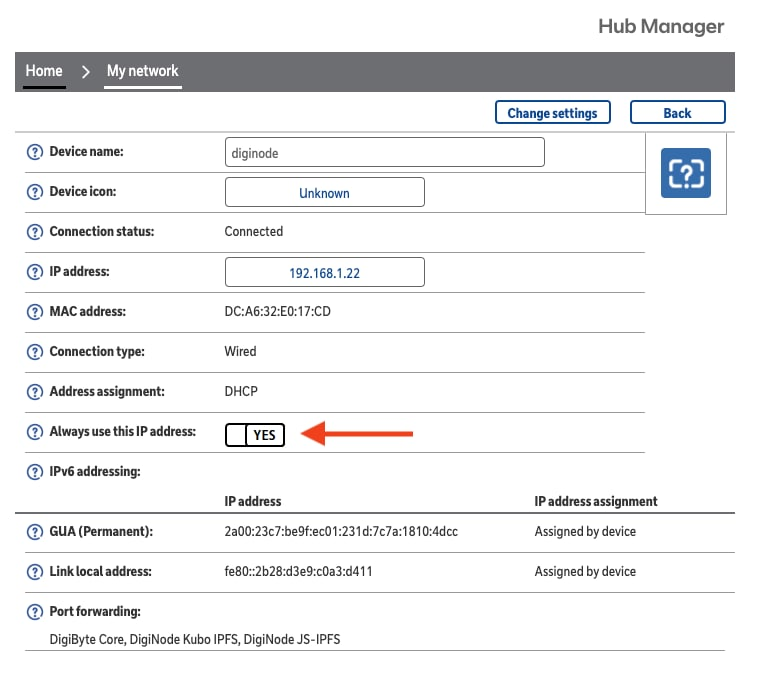
On others, like a BT Home Hub, you click the device in the list of connected devices and set it to always use this IP address:
Tidy up: keep fixed addresses out of the automatic range (optional)
You can make the range of addresses your router hands out automatically (DHCP) a little smaller, and give fixed addresses from outside it - so they never clash. For example: 192.168.1.1 - 30 for fixed addresses, 192.168.1.31 - 253 for automatic ones, and 192.168.1.254 for the router.
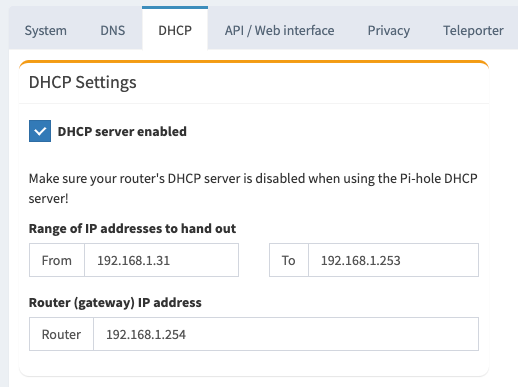
7dYou may need to restart the Pi (sudo reboot) or the router for the change to take effect. The DigiNode Dashboard shows the Pi's current IP address - note it down.
Forward port 12024
Tell your router to send DigiByte traffic arriving on port 12024 to your DigiNode.
7eIn your router's settings, create a new port forwarding rule: port 12024 (TCP), external and internal, to your DigiNode - by its name, IP address or MAC address, whichever your router asks for.

Running a Testnet node?
Forward port 12033 for a testnet node on DigiByte Core v9 (12026 on v8). For a Dual Node, forward both 12024 and the testnet port.
Search the web for your router's make and model plus "port forward", or see portforward.com for instructions for many routers.
7fCheck it works with the DigiByte Port Tester - or the port test in the DigiNode Dashboard.
What is port forwarding?
Think of your router's public IP address as an office building, your local IP addresses as floors, and port numbers as rooms. From the internet, people can only see the building. A port forwarding rule makes one room - port 12024 on your DigiNode - reachable from outside, while the rest of the building stays private.
Case fan and power button (optional)
7gUsing the Argon ONE M.2 case? DigiNode Setup can install its fan and power button software: run diginode-setup and choose Extras from the main menu.
7gThe official Raspberry Pi 5 case's fan works automatically. For the Argon ONE V3, install its fan and power button software by following the case's instructions.
Your DigiNode is up and running! 🍾🥂🚀
Please share your #DigiNode on social media - the more people who run a DigiByte Node, the more robust and decentralized the DigiByte network becomes.
Stay up to date: join the DigiNode Tools Telegram group, and follow @diginode.tools on Bluesky.
Please Support DigiNode Tools
I created DigiNode Tools to make it easy for everybody to run their own DigiByte Node. It's free, its code is public, and I build and maintain it in my spare time, for the benefit of the DigiByte community. If this guide has helped you, please consider sponsoring me, so I can devote more time to it. Thank you for your support, Olly

Find me on Bluesky @olly.st.