Choose your Raspberry Pi and Raspberry Pi OS
Open Raspberry Pi Imager (version 2 or newer). It walks you through a few screens - here's what to choose on each.
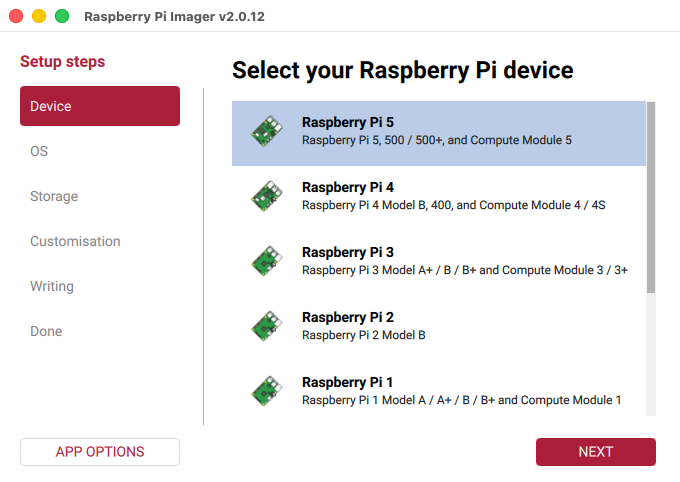
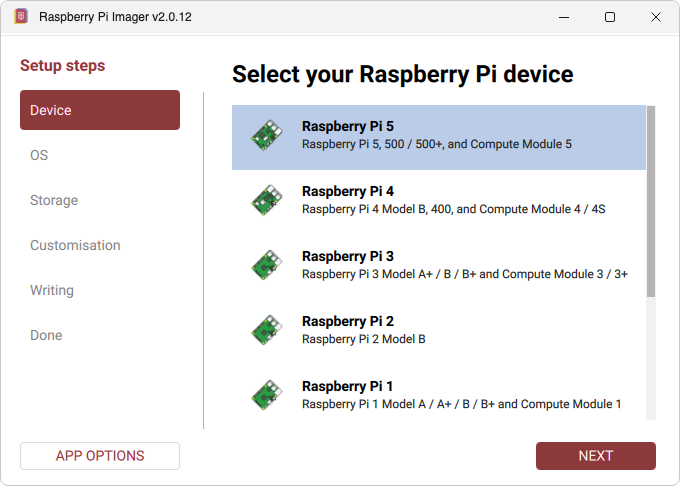
3aDevice: click your Raspberry Pi - Raspberry Pi 5 or Raspberry Pi 4 - then NEXT.
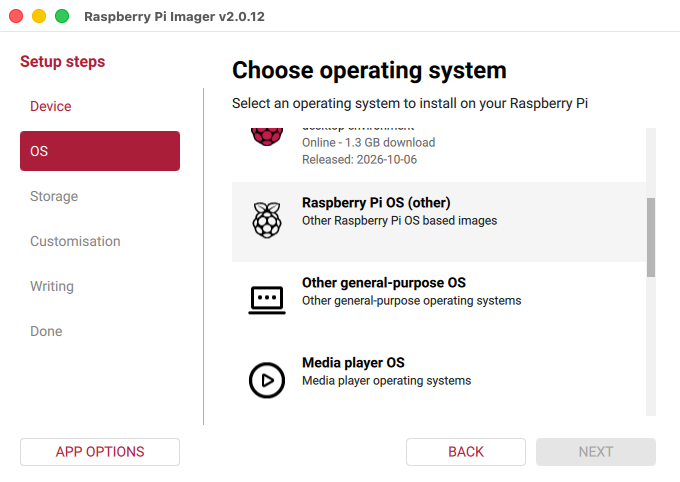
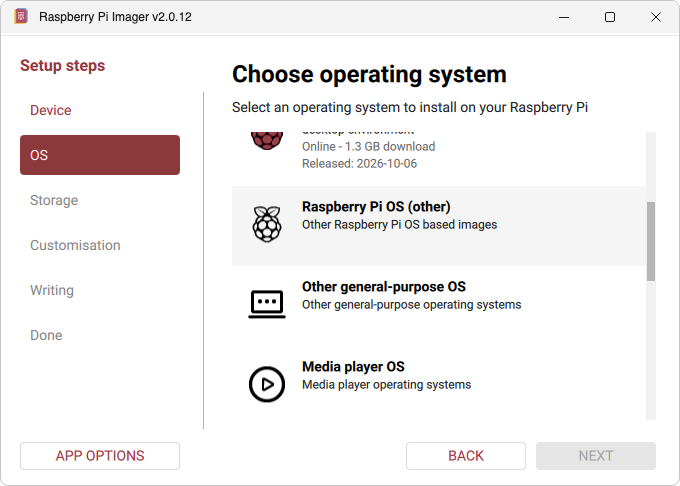
3bOS: scroll down and click Raspberry Pi OS (other).
3cClick Raspberry Pi OS Lite (64-bit), then NEXT.
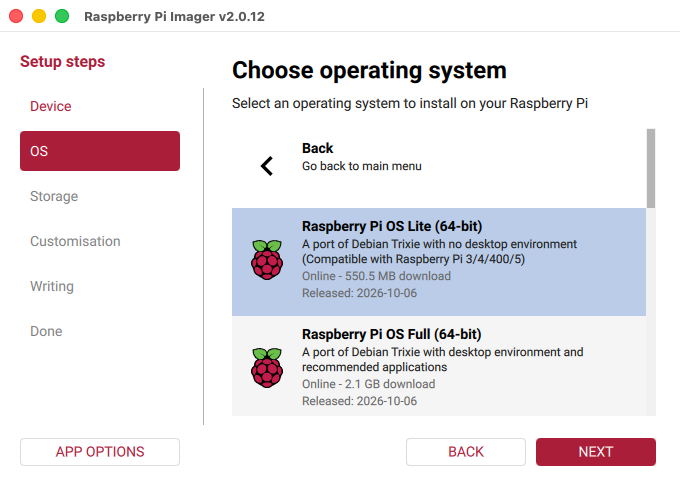
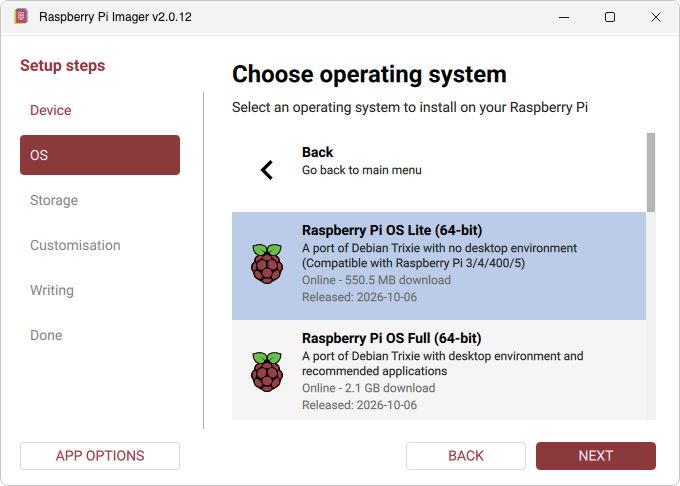
It must be the Lite edition (no desktop) and 64-bit - the 32-bit one won't work.
Choose your SSD
Pick the SSD you connected to your computer in step 1.
3dStorage: click your SSD, then NEXT.
On a Raspberry Pi 5, it's the NVMe SSD in its USB dock or enclosure.
On a Raspberry Pi 4, it's your external SSD, or the SSD inside your case.
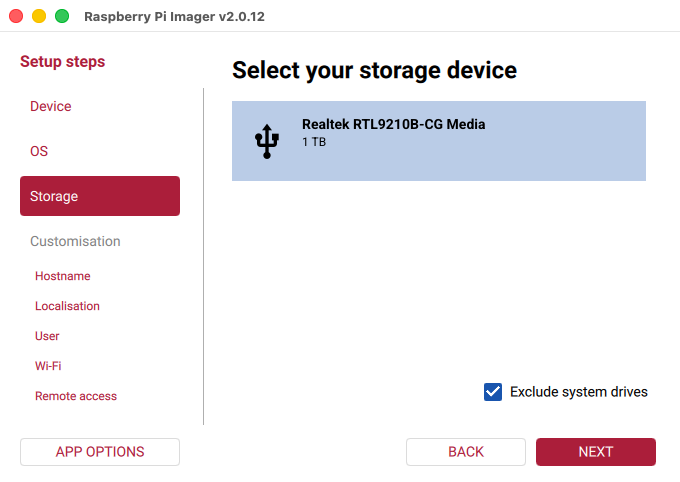
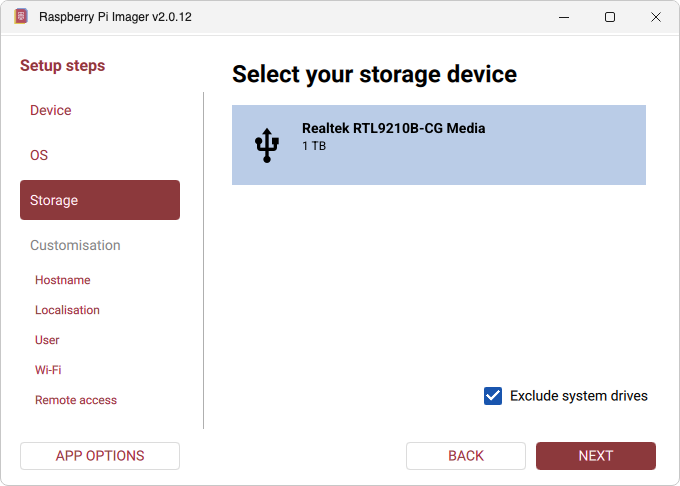
Be very careful to pick the right drive - everything on it will be erased. Not sure which one it is? Unplug the SSD, see which drive disappears, then plug it back in.
I can't see my SSD
Unplug it and plug it back in, and wait a few seconds. Still not there? Try another USB port or cable. Make sure Exclude system drives is ticked, so you can't pick your computer's own drive by mistake.
Add your settings
These settings let you connect to your Pi from your computer the first time it starts - no screen or keyboard needed.
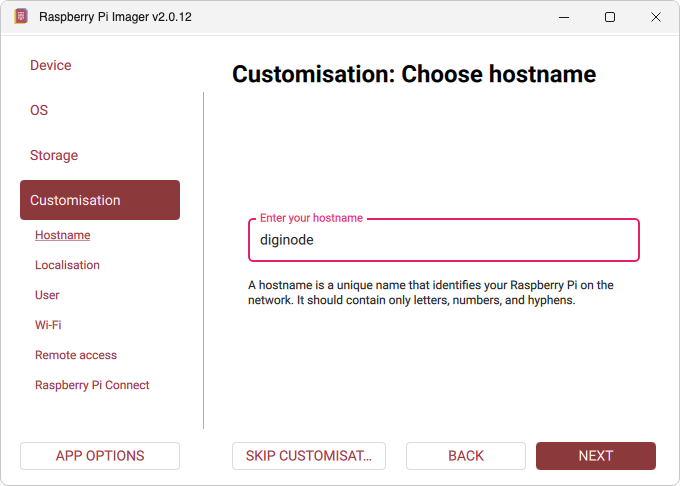
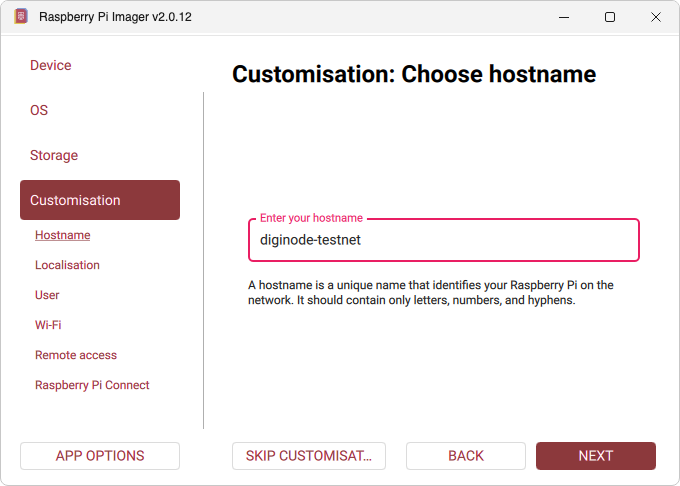
3eHostname: type diginode, then NEXT.
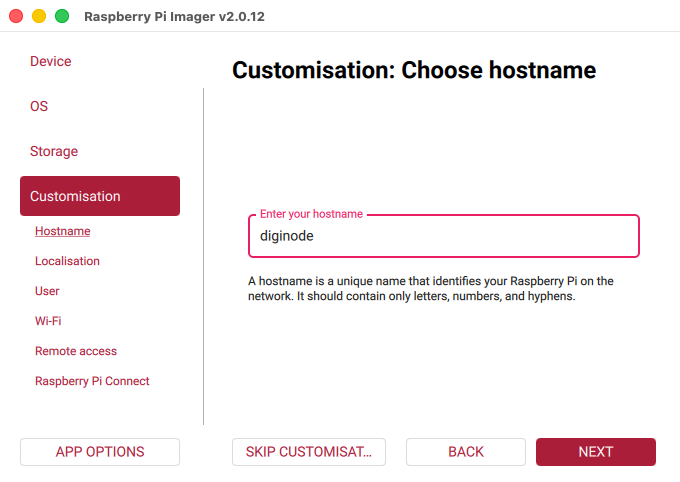
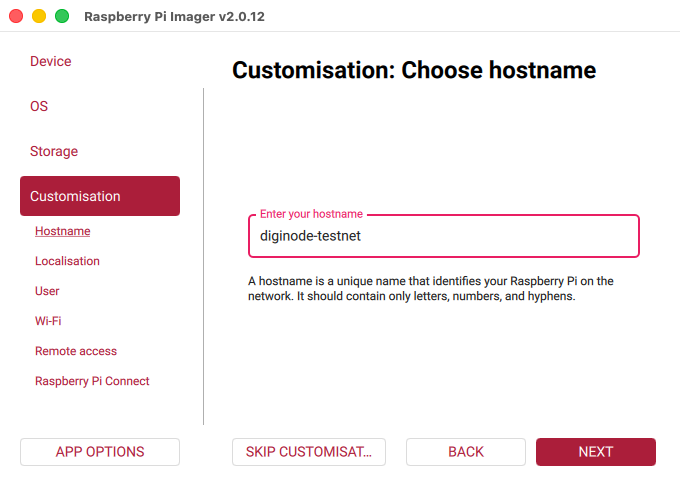
Running a Testnet node only?
Type diginode-testnet instead. Use diginode for a Mainnet node, or a Dual Node (mainnet and testnet together).
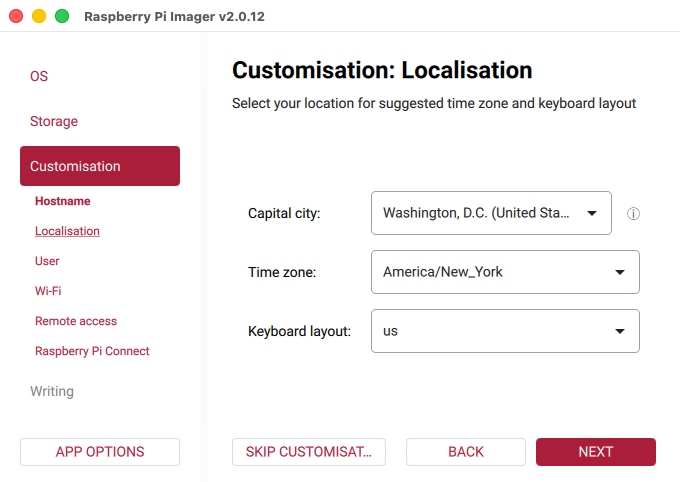
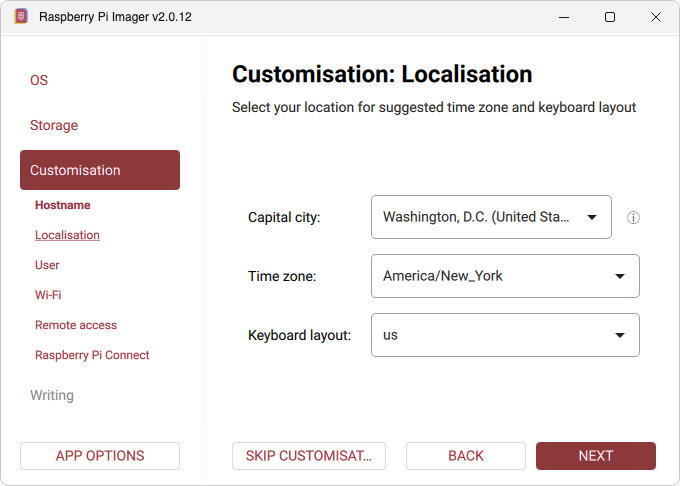
3fLocalisation: choose your capital city - it fills in your time zone and keyboard layout. Then NEXT.
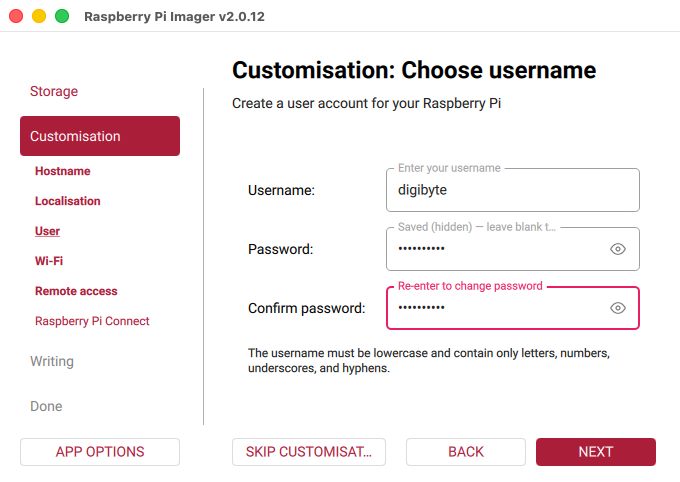
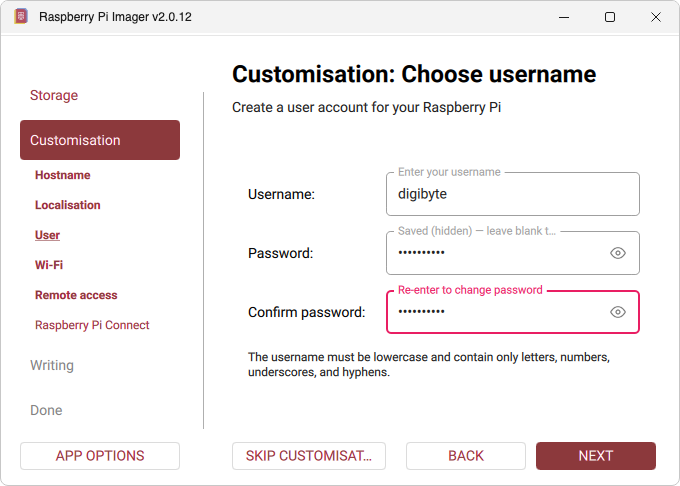
3gUser: type digibyte as the username, and choose a password. Don't forget it - you'll need it to manage your DigiNode. Then NEXT.
3hWi-Fi: leave it empty and click NEXT - an ethernet cable is best for a DigiNode.
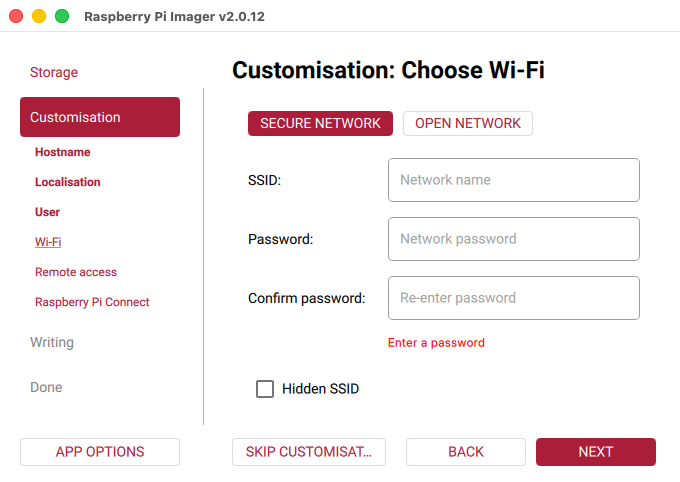
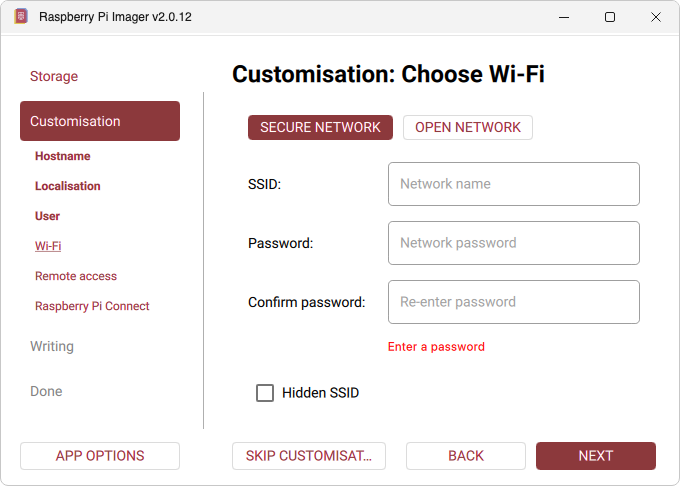
Want to use Wi-Fi?
Enter your Wi-Fi network name (SSID) and password. A cable is more reliable, and your DigiNode is a server that needs a steady connection to the internet - so use one if you can.
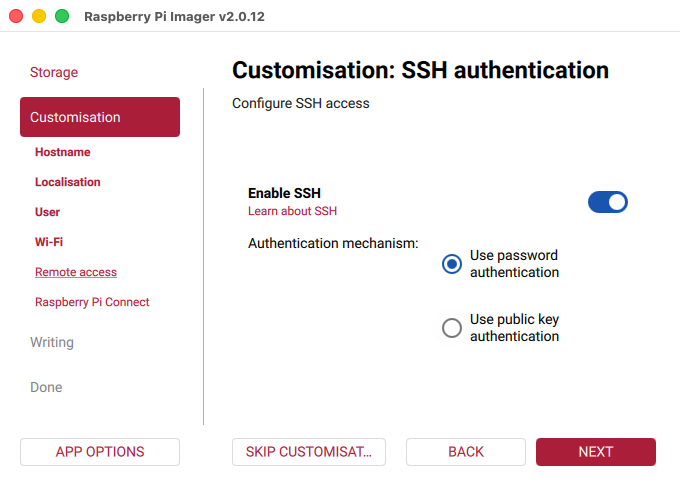
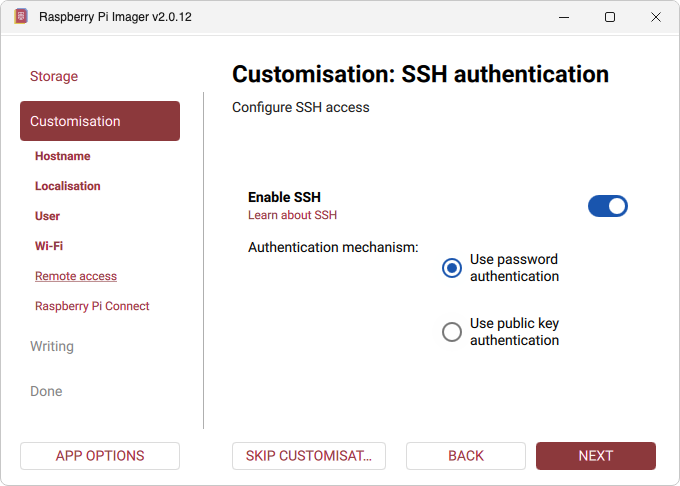
3iRemote access: turn on Enable SSH and choose Use password authentication. Then NEXT.
Want better security?
Instead of a password, you can use a public key to log in - recommended if you plan to use the DigiByte wallet on your DigiNode. It takes a little more setting up.
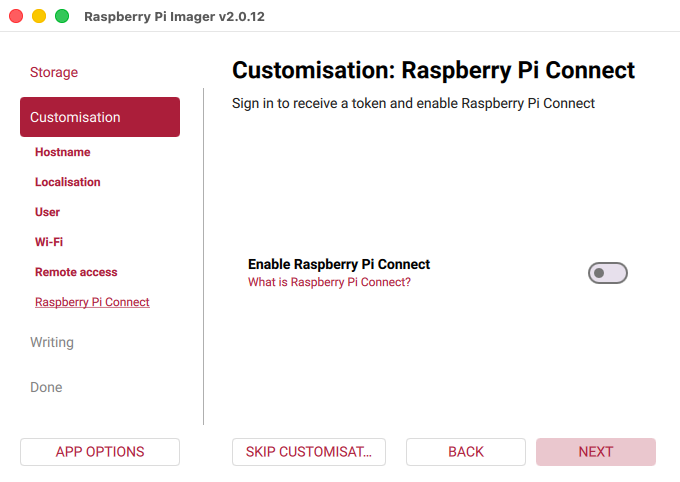
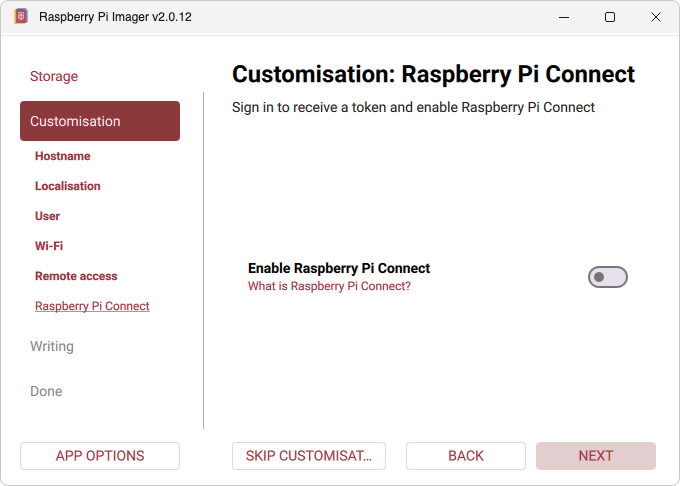
3jRaspberry Pi Connect: leave it off and click NEXT.
Write Raspberry Pi OS to the SSD
Check your choices, then write. It takes a few minutes.
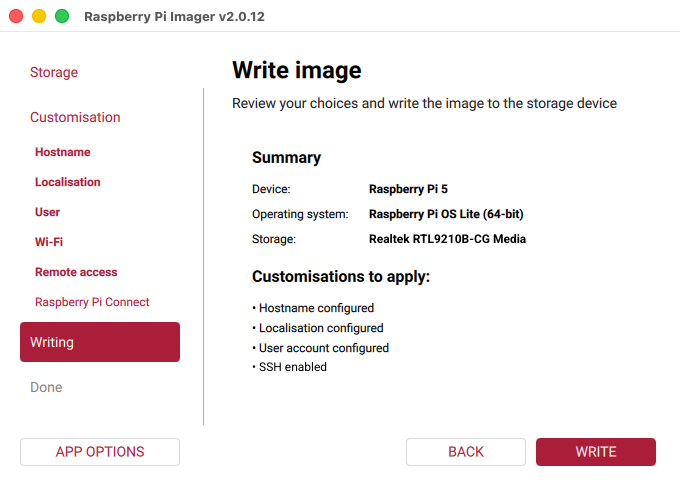
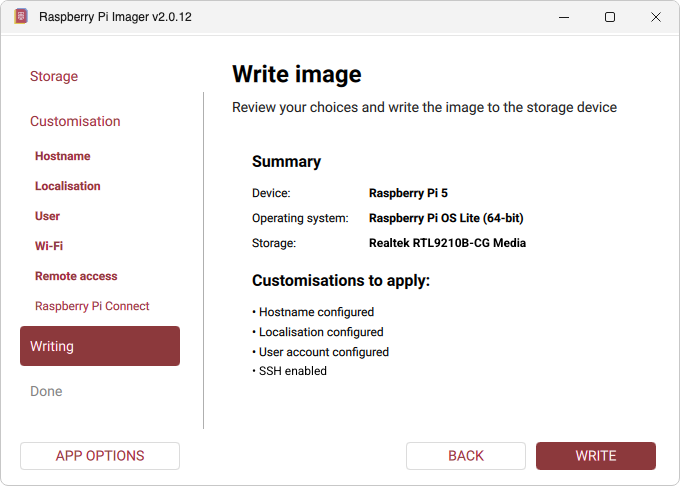
3kWriting: check the summary - your Raspberry Pi, Raspberry Pi OS Lite (64-bit) and your SSD - then click WRITE.
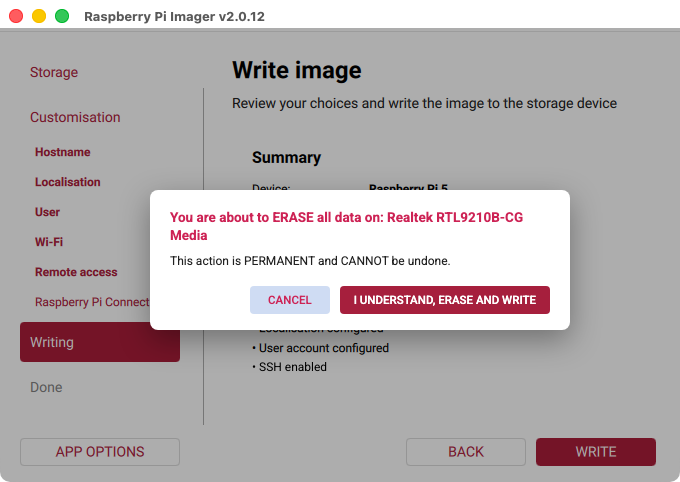
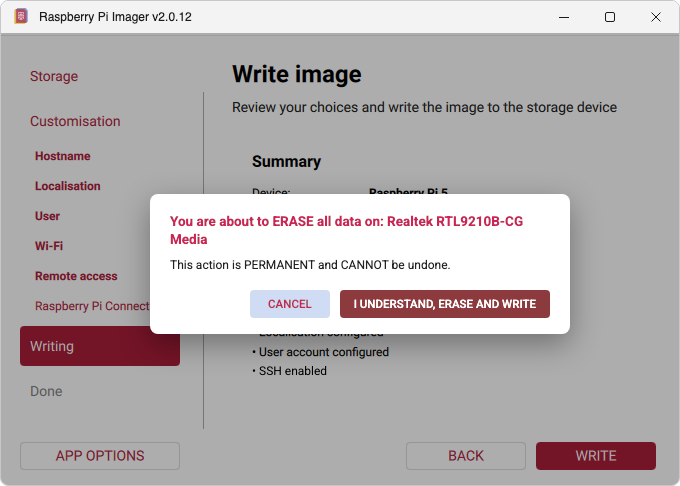
3lCheck it names your SSD, then click I UNDERSTAND, ERASE AND WRITE.
3mOn a Mac, enter your computer's password (the one you log in with) and click OK.

3nImager downloads Raspberry Pi OS and writes it to the SSD. When it says it has finished, close Raspberry Pi Imager and unplug the SSD from your computer.
Raspberry Pi 5: take the SSD out of its dock - you'll fit it on the M.2 board in step 4.
Next: Step 4 - Connect everything and power on
Or go back to the One Page Setup.
Please Support DigiNode Tools
This guide and DigiNode Tools are free, and I build and maintain them in my spare time. If they have helped you, please consider supporting my work: