Set up your DigiNode on a Raspberry Pi
A Raspberry Pi is one of the easiest ways to run a dedicated DigiNode. We recommend a Raspberry Pi 5 (8GB or more) with an NVMe SSD, or a Raspberry Pi 4 8GB with a USB SSD. See Build a DigiNode for the parts.
This guide takes you through every step in detail. Choose your Raspberry Pi above - the steps show the instructions for it. Prefer a quick overview? Use the One Page Setup. Stuck? Ask in the DigiNode Tools Telegram group.
No screen needed: a DigiNode runs "headless" - you don't need a display, keyboard or mouse on your Raspberry Pi. Everything is done from your Mac or Windows computer.
Assemble your Raspberry Pi
On a Raspberry Pi 5, the SSD is an NVMe drive on an M.2 board, connected to the Pi's PCIe port. It's much faster than USB.
1aFit your M.2 board and case. The two most popular choices:
Raspberry Pi M.2 HAT+

The official board. It sits on top of the Pi and takes a 2230 or 2242 NVMe SSD. Follow Raspberry Pi's installation guide.
Want it in the official case?

Get the M.2 HAT+ Compact: it fits inside the official Raspberry Pi 5 case, around the case's fan, with the lid on. It takes 2230 SSDs only. The full-size M.2 HAT+ only fits the official case with the lid and fan removed.
Fitting tips
Always unplug the Pi first. The ribbon cable goes into the Pi's PCIe port with its contacts facing the USB ports. Make sure all the GPIO pins line up, and don't over-tighten the screw that holds the SSD.
Argon ONE V3 M.2 NVMe case
A complete case with the NVMe board built into its base, a fan and a power button. It takes M.2 NVMe SSDs (M-key) up to 2280 - the most common size. See the Argon ONE V3 M.2 NVMe case and its instructions.
Make it start up by itself after a power cut
The case has a power button. Set its jumper inside the case so the Pi starts automatically when the power is connected - then your DigiNode comes back by itself after a power cut. The case's instructions show how.
Leave the SSD out for now. You'll put Raspberry Pi OS on it from your computer first (steps 2 and 3), then fit it in step 4.
1bUse the official Raspberry Pi 27W USB-C power supply. The Pi 5 needs more power than a Pi 4, especially with an SSD.
Put your Raspberry Pi 4 in its case.
1aAssemble the Raspberry Pi in its case, following the case's instructions.
Does your case have a power button?
It may have an option to start the Pi automatically when the power is connected, instead of waiting for you to press the button. Turn it on - then your DigiNode comes back by itself after a power cut. It's usually a jumper on the case's board; see the case's instructions.
Using the Argon ONE M.2 case? Watch the video
You can stop watching when it gets to installing Raspberry Pi Imager - that's step 2.
Connect the SSD to your computer
You'll use your computer to put Raspberry Pi OS on the SSD, so plug the SSD into it.
1cYour computer can't take an NVMe SSD directly, so use a USB NVMe dock or enclosure. A tool-free dock, like this one, is easiest: the SSD clicks in and out without screws - handy, as you'll move it to the Pi in step 4. Put the SSD in, and plug the dock into your computer.

No NVMe dock or enclosure?
You can also put Raspberry Pi OS on the NVMe SSD from the Pi itself: start the Pi from a microSD card, then use Raspberry Pi Imager on the Pi to write to the NVMe SSD. See Raspberry Pi's instructions. A dock or enclosure is easier, and handy for backups later.
Raspberry Pi M.2 HAT+ images: Raspberry Pi Ltd, CC BY-SA 4.0.
1bExternal SSD: plug it into your computer with the cable it came with.
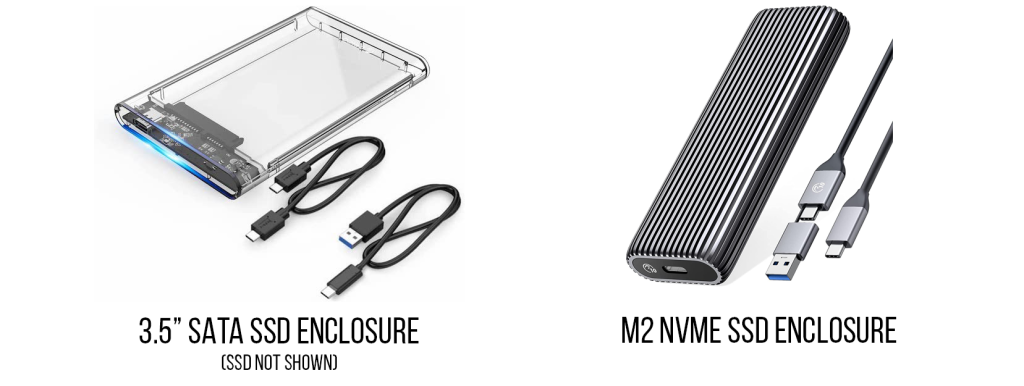
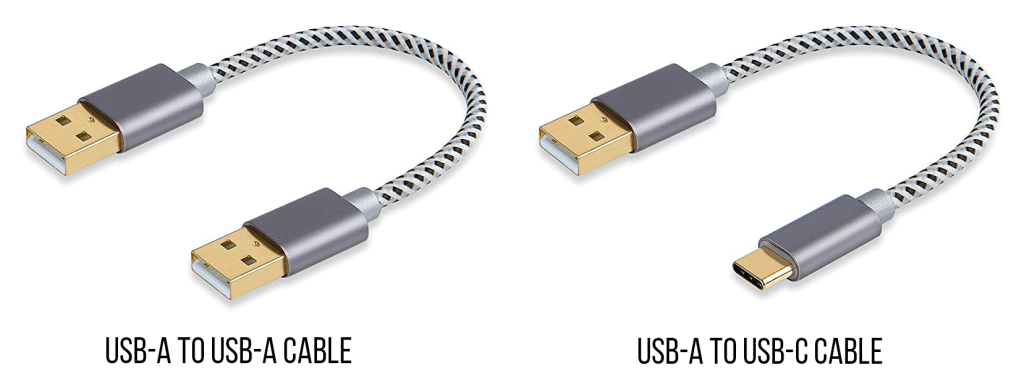
1cSSD inside the case (like the Argon ONE M.2 or DeskPi Pro): connect the case's SSD port to your computer with a USB-A to USB-A cable, or a USB-A to USB-C cable if your computer only has USB-C ports.
Where is the SSD port on the Argon ONE M.2?
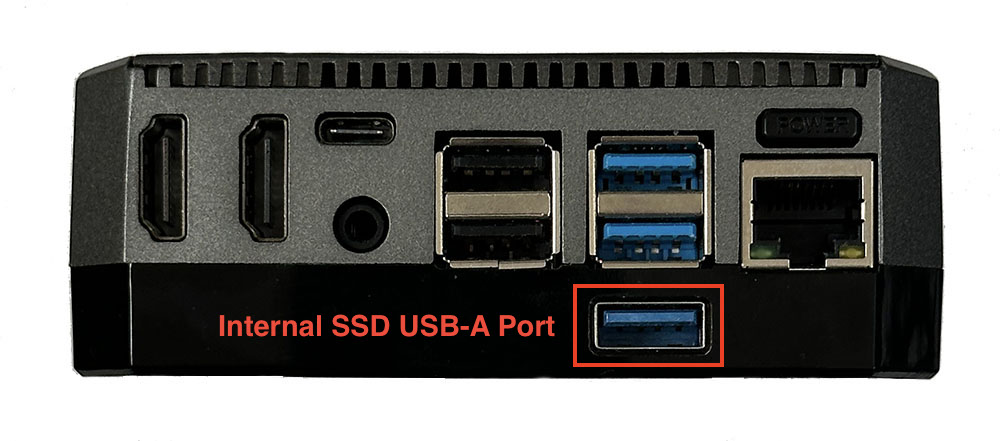
Connect one end of the cable to the internal SSD's USB-A port at the bottom of the case, and the other end to your computer.
Next: Step 2 - Install Raspberry Pi Imager
Or go back to the One Page Setup.
Please Support DigiNode Tools
This guide and DigiNode Tools are free, and I build and maintain them in my spare time. If they have helped you, please consider supporting my work: